A small personal VPN can be useful for travel, lab work, and a disposable trusted egress point in a cloud subscription. The important word is disposable: a personal VPN should be easy to create, easy to audit, and easy to destroy when it is no longer needed.
This post uses the Trail of Bits Algo project as the deployment wrapper and WireGuard as the client VPN. The exact commands can drift over time, so treat this as a practical workflow rather than frozen vendor documentation.
2026 context: this is a handy lab or personal setup, not enterprise VPN architecture. Before using Algo today, check the current project status, supported cloud providers, supported operating systems, and whether WireGuard directly, Tailscale, Cloudflare WARP, or your cloud provider’s native VPN service is a better fit.
The pattern
The good pattern here is disposable infrastructure:
- Create a small VPN endpoint in Azure, AWS, or another supported provider.
- Generate strong per-device client configurations.
- Store those client configurations as credentials.
- Confirm the cloud firewall exposes only the required ports.
- Tear the server down when the use case is finished.
Do not let a forgotten personal VPN become a mystery Internet-facing box in your subscription.
Deploying Algo
If you are on Windows, using WSL generally makes the deployment process smoother.
- Make sure the Azure CLI or equivalent cloud CLI is installed and authenticated.
- Clone the Algo repository:
git clone https://github.com/trailofbits/algo.git
cd algo
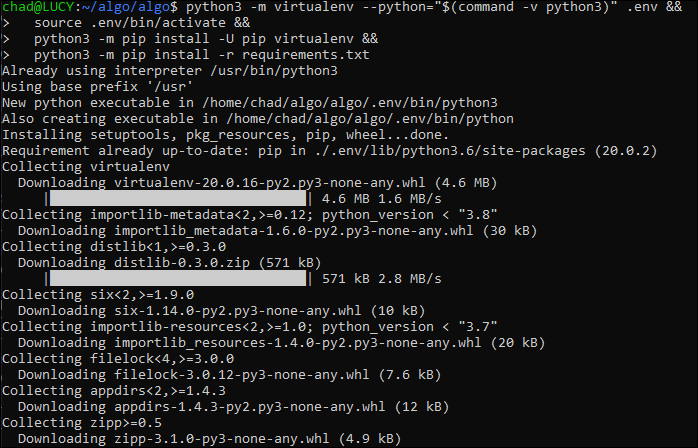
- Create the Python environment and install the dependencies:
python3 -m virtualenv --python="$(command -v python3)" .env
source .env/bin/activate
python3 -m pip install -U pip virtualenv
python3 -m pip install -r requirements.txt
- Edit
config.cfgto suit the deployment. At minimum, define the users/devices that should receive VPN profiles. - Run the deployment wizard:
./algo
- Answer the provider and configuration questions.
When deployment succeeds, Algo writes the generated client material into the configs/ directory:
#                          Congratulations!                            #
#                     Your Algo server is running.                     #
#    Config files and certificates are in the ./configs/ directory.    #
#              Go to https://whoer.net/ after connecting               #
#        and ensure that all your traffic passes through the VPN.      #
After deployment, confirm the cloud security group or NSG exposes only the ports Algo requires.
Connecting from desktop clients
Install the WireGuard client for your operating system, then find the generated configuration for the client you created. In an Algo deployment, that is usually under a path like:
configs/<vpn-public-ip>/wireguard/
Import the matching .conf file into the WireGuard client and activate the tunnel.
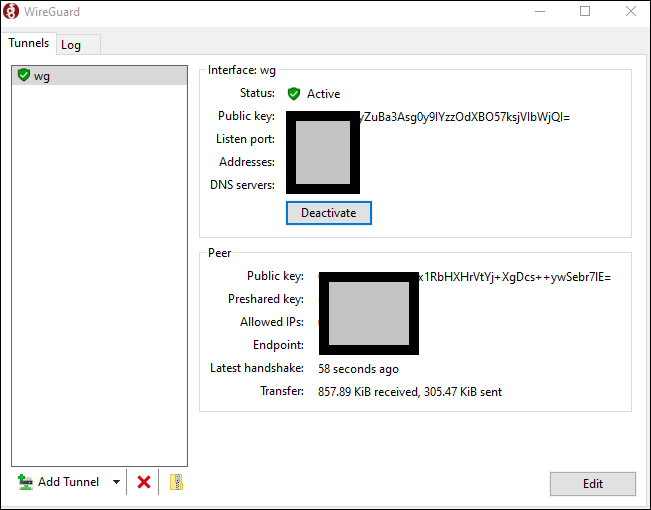
VPN configuration files are credentials. Anyone who has the config can authenticate as that client, so store them carefully and rotate them if they are exposed.
Connecting from Ubuntu
On Ubuntu, first check the current WireGuard installation guidance:
https://www.wireguard.com/install/
For many Ubuntu releases, installation is still straightforward:
sudo apt install wireguard
Copy the generated client configuration into /etc/wireguard. For example:
sudo cp ubuntu.conf /etc/wireguard/wg0.conf
Start the tunnel:
sudo systemctl start wg-quick@wg0
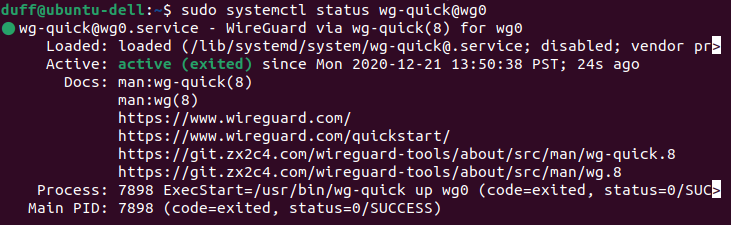
Confirm the service is running:
sudo systemctl status wg-quick@wg0
Confirm WireGuard has a live interface and peer:
sudo wg
Check the observed external IP address:
curl ipv4.icanhazip.com
If this client should connect after reboot, enable the service:
sudo systemctl enable wg-quick@wg0
Cleanup
The cleanup step is not optional. When the VPN is no longer needed:
- Remove unused client configurations.
- Destroy the cloud VM and associated networking resources.
- Check for lingering public IPs, disks, NSGs, firewall rules, and DNS records.
- Remove any local copies of generated configs that are no longer needed.
Small infrastructure has a habit of becoming permanent infrastructure when nobody owns its lifecycle. A personal VPN is most useful when it stays boring, documented, and temporary.
