Docker is easiest to understand if you start with the plain definition: a container is a packaged process with runtime dependencies and a set of isolation boundaries around it. From there, the practical questions become image construction, storage, networking, and how much isolation the host actually provides.
That framing is more useful than saying “containers are lightweight VMs”, because containers do not carry their own full operating-system kernel in the normal case. They share the host kernel, add filesystem and process isolation, and make application packaging more repeatable.
On Windows, that simple idea gets more interesting because there are two common workflows:
- Running Linux containers from Docker Desktop on a Windows workstation.
- Running Windows containers, usually for Windows workloads such as IIS or .NET Framework applications.
Those workflows look similar from the Docker CLI, but the plumbing underneath is different.
Docker Desktop on Windows
Modern Docker Desktop on Windows commonly uses the WSL 2 backend for Linux containers. Older setups often used Hyper-V directly, and Docker Desktop can still use different backends depending on configuration and policy.
That distinction matters because a command such as this:
docker run -p 8080:80 nginx
does not mean Windows itself is suddenly running a Linux process natively. Docker Desktop is brokering the request into a Linux environment, and the container runs against a Linux kernel there.
Docker Desktop also supports Windows containers, but you need to switch to Windows container mode. At that point the same docker CLI is talking to a Windows container runtime instead of the Linux-container backend.
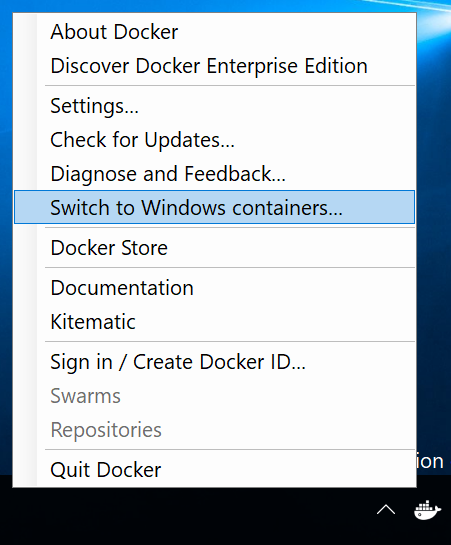
First useful commands
Check what Docker client and server you are talking to:
docker version
docker info
Run a small test container and publish container port 80 on host port 8080:
docker run -p 8080:80 nginx
The port mapping is host:container, so 8080:80 means “listen on port 8080 on the host and forward to port 80 in the container.”
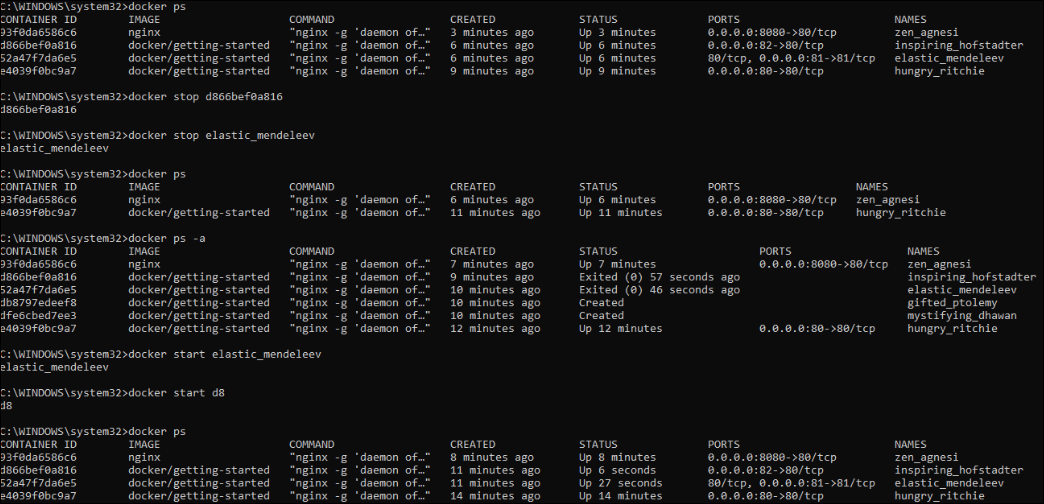
List running containers:
docker ps
List all containers, including stopped ones:
docker ps -a
Stop a container by ID prefix or name:
docker stop d86
Remove one or more stopped containers:
docker rm d86 d99 t44
Remove all stopped containers in a lab environment:
docker container prune
Windows containers are not Linux containers with a different image
Windows containers package Windows user-mode components and run against a Windows kernel. That is why the host/container version relationship matters much more than people expect when coming from Linux containers.
A simple Windows container test might look like this:
docker run -it mcr.microsoft.com/windows/servercore:ltsc2019 cmd
For IIS, you can run a Windows Server Core IIS image and publish port 80:
docker run -p 8080:80 -d --name iis mcr.microsoft.com/windows/servercore/iis:ltsc2019
Historically you will see examples that use microsoft/iis:nanoserver. Prefer the current Microsoft Container Registry image names under mcr.microsoft.com when writing new notes or build files.
Isolation modes
Windows containers have two isolation modes:
- Process isolation: the container shares the host kernel, similar in spirit to Linux containers.
- Hyper-V isolation: the container runs inside a small utility VM, which gives stronger isolation and more flexibility when host and container versions do not match.
You can force Hyper-V isolation when needed:
docker run -it --isolation=hyperv mcr.microsoft.com/windows/servercore:ltsc2019 cmd
This is one of the places where Windows containers feel different from Linux containers. With process isolation, the Windows host and the Windows container image need to be compatible. Hyper-V isolation is more forgiving because the container gets a matching kernel environment inside the utility VM.
Microsoft’s compatibility matrix is the source of truth here:
Windows container version compatibility
When you get compatibility wrong, the failure can look like this:
The container operating system does not match the host operating system.
That error is not Docker being mysterious. It is usually the Windows host build, container image build, and isolation mode disagreeing.
Inspecting a container
docker inspect gives a detailed JSON view of a container:
docker inspect 6ac
The network section is often useful during labs because it shows the container’s address on the Docker network:
"Networks": {
  "nat": {
    "Gateway": "172.20.16.1",
    "IPAddress": "172.20.23.68",
    "IPPrefixLen": 16
  }
}
Port publishing is usually what you want for host access, but knowing where to find the container IP helps when debugging Windows container networking.
To start a shell inside a running Windows container:
docker exec -it <container-name-or-id> PowerShell
Building a simple Windows image
Before building on top of a base image, try running the base image directly. It is a quick way to catch version and isolation problems before adding your own Dockerfile complexity:
docker run mcr.microsoft.com/windows/servercore:ltsc2019
A simple IIS image can look like this:
# escape=`
FROM mcr.microsoft.com/windows/servercore:ltsc2019

RUN PowerShell -Command `
    Add-WindowsFeature Web-Server; `
    Invoke-WebRequest -UseBasicParsing `
      -Uri "https://dotnetbinaries.blob.core.windows.net/servicemonitor/2.0.1.6/ServiceMonitor.exe" `
      -OutFile "C:\ServiceMonitor.exe"

EXPOSE 80
ENTRYPOINT ["C:\ServiceMonitor.exe", "w3svc"]
Or, if the base image already contains IIS and you only need to add static content:
FROM mcr.microsoft.com/windows/servercore/iis:ltsc2019

COPY app c:/inetpub/wwwroot
Build the image:
docker build -t iis_test .
Run it:
docker run -p 8080:80 -d iis_test:latest
Compose and networks
Docker Compose is useful when an application needs multiple related containers:
docker compose up
Older examples often use docker-compose; newer Docker installations expose Compose as docker compose.
Docker provides internal DNS resolution between containers on the same Docker network, which is why Compose files can often refer to other services by service name.
List Docker networks:
docker network ls
Run a container on a specific network:
docker run --net <network-name> <image>
Saving an image
To export an image to a tar archive:
docker save mcr.microsoft.com/dotnet/framework/runtime:4.8-windowsservercore-ltsc2019 -o windows-container.tar
Use a .tar extension for clarity. The archive is not a RAR file unless you separately compress it with RAR.
Windows Server container hosts
For production-like Windows container testing, use a Windows Server container host rather than treating Docker Desktop as a server platform. Docker Desktop is a developer tool.
Older notes often install Docker on Windows Server with DockerMsftProvider:
Install-Module DockerMsftProvider -Force
Install-Package Docker -ProviderName DockerMsftProvider -Force
Treat that as legacy guidance. Before building a new Windows Server container host, check Microsoft’s current quickstart and runtime guidance:
Prepare Windows operating system containers
For troubleshooting Windows container hosts, Microsoft has historically provided this helper:
Invoke-WebRequest https://aka.ms/Debug-ContainerHost.ps1 -UseBasicParsing | Invoke-Expression
The main takeaways
The Docker CLI makes Linux and Windows containers feel similar, but the runtime details matter:
- Linux containers on Windows usually run through Docker Desktop’s Linux backend, commonly WSL 2 on modern systems.
- Windows containers run Windows user-mode components and care about host/image compatibility.
- Process isolation is closer to the classic container model, but Hyper-V isolation is often more flexible on Windows.
- Use current
mcr.microsoft.comimage names rather than oldmicrosoft/*examples. - Docker Desktop is great for development, but it is not the same thing as a production Windows Server container host.
Once those pieces are clear, Windows containers become much less surprising. Most of the confusion comes from forgetting which kernel the workload expects to share.
